using System;
using System.Net; //IPAddress, Dns
using System.Net.Sockets; //AddressFamily

namespace ConsoleServerTest
{
    class Program
    {
        public static void Main (string[] args)
        {
            PrintMyAddress();
        }

        private static void PrintMyAddress()
        {
            IPAddress[] host = Dns.GetHostAddresses(Dns.GetHostName());

            for (int i = 0; i < host.Length; ++i)
            {
                if (host[i].AddressFamily == AddressFamily.InterNetworkV6) //IPv6
                {
                    Console.WriteLine("IPv6 주소 [{0}]", host[i]);
                }

                if (host[i].AddressFamily == AddressFamily.InterNetwork) //IPv4
                {
                    Console.WriteLine("IPv4 주소 [{0}]", host[i]);
                }
            }
        }
    }
}
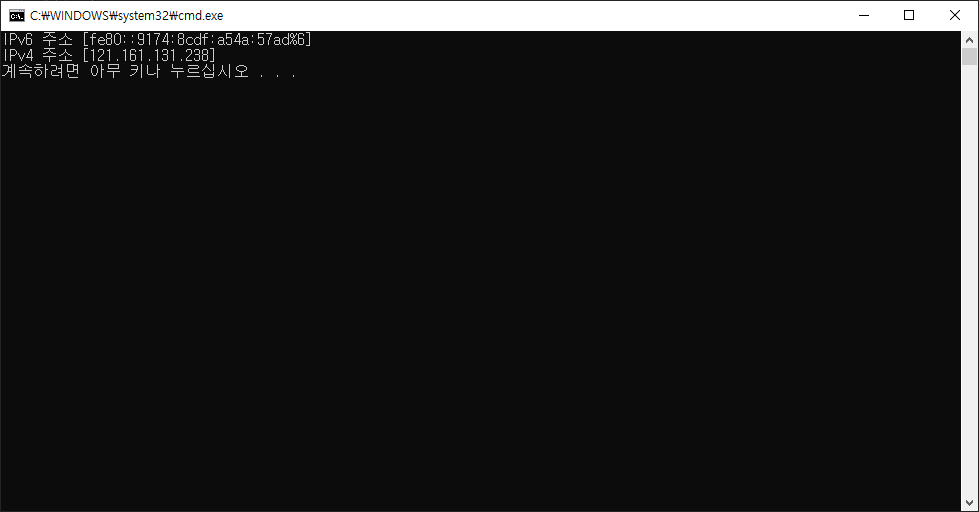
실행 결과

IP 주소는 고정 아이피를 신청하지 않는 이상 계속 바뀌게 됩니다.

다른 기기 (공유기, 스위칭 허브 등) 연결 없이 바로 연결했기 때문에

바로 제가 쓰고 있는 유동 아이피가 나온 모습입니다 ㅎㅎ

어떤 문자를 입력 받아 해당 구문에 대해 올바른 문자열인지 판별할 때 Regex를 사용할 수 있습니다.

기능들이 많지만 사실 다 필요한 건 아니고 간단하게 쓸거잖아요? ㅎㅎ

일단 훑어봅시다.


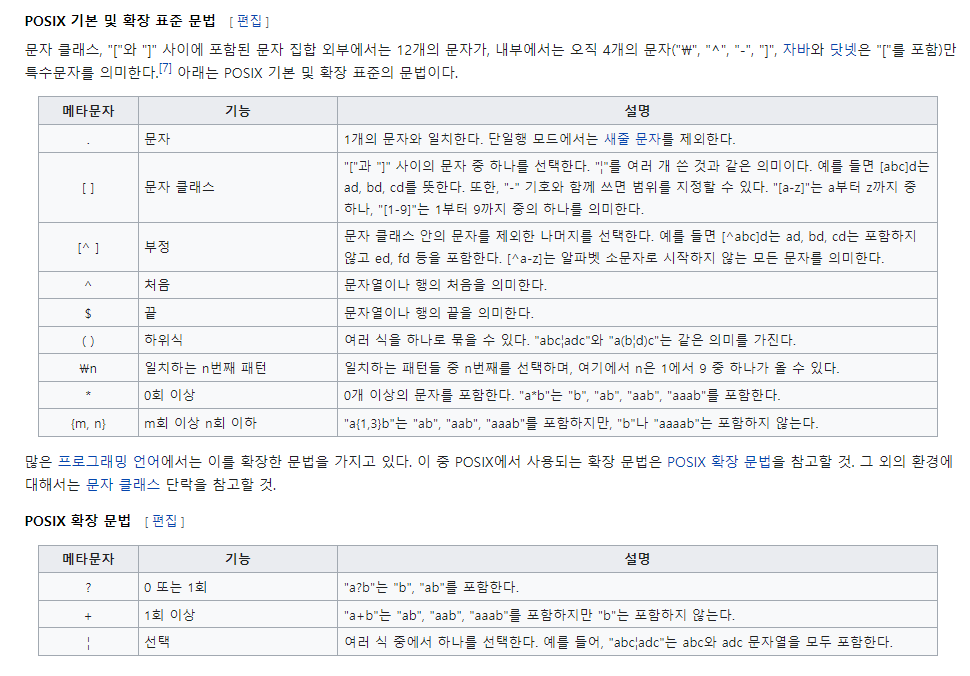
위키백과 정규표현식 (보기 싫게 생겼다)


개인적으로 필요한 기능은 한글과 영어 숫자에 대한 입력만을 확인하기 위한 것이었습니다.

a~z, A~Z, 가~히, ㄱ~ㅎ, ㅏ~ㅣ, 0~9


using System;
using System.Text.RegularExpressions; //Regex

namespace ConsoleApp
{
    class Program
    {
        private static bool IsValidString (string input)
        {
            //^는 시작 의미
            //+는 최소 1개 이상을 의미
            //$는 끝을 의미
            //@" " 로 쓰는 이유는 \를 문자로 다루기 위해서입니다.
            //"c:\\" == @"c:\"
            return Regex.IsMatch(input, @"^[a-zA-Z0-9가-히ㄱ-ㅎㅏ-ㅣ]+$");

            //아래 코드와 같은 동작을 합니다..
            //for (int i = 0; i < input.Length; ++i)
            //{
            //    char ch = input[i];
            //    if (('a' <= ch && ch <= 'z') ||
            //        ('A' <= ch && ch <= 'Z') ||
            //        ('0' <= ch && ch <= '9') ||
            //        ('ㄱ' <= ch && ch <= 'ㅎ') ||
            //        ('ㅏ' <= ch && ch <= 'ㅣ') ||
            //        ('가' <= ch && ch <= '힣') ||
            //        ch == '_')
            //    {
            //        //ok
            //    }
            //    else
            //    {
            //        return false;
            //    }
            //}

            //return true;
        }

        static void Main(string[] args)
        {
            for (int i = 0; i < 5; ++i)
            {
                Console.Write("input : ");
                string input = Console.ReadLine();

                if (IsValidString(input))
                {
                    Console.WriteLine("유효한 문자열입니다.");
                }
                else
                {
                    Console.WriteLine("유효하지 않은 문자열입니다.");
                }
                Console.WriteLine();
            }
        }
    }
}


추가적으로 알아야 할 것은 input 길이가 더 길어도 패턴에 매칭되면 무조건 true를 반환한다는 것입니다.


. : 1개의 문자를 의미

 ex) Regex.IsMatch("123", @"...") == true     (3개가 매칭됩니다.)

      Regex.IsMatch("12344", @"...") == true  (3개가 매칭되면 true가 됩니다.)

      Regex.IsMatch("12", @"...")  == false     (2개만 매칭되어 false가 됩니다.)


[ ] : 내부의 모든 문자를 의미

   [a-z]  - 표시를 통해 a ~ z 까지의 의미를 표현합니다.

   [a-z] == [abcd...xyz]


   [^a-z] 내부에 ^문자가 들어가면 부정형태 즉 a~z까지 들어가면 false가 됩니다.


 ex) Regex.IsMatch("z", @"[a-z]")  == true

      Regex.IsMatch("z25", @"[a-z]" == true (앞의 1개가 매칭되어 true가 됩니다.)

      Regex.IsMatch("1", @"[a-z]" == false

using System;
using System.Diagnostics; //Process

namespace ConsoleApp
{
    class Program
    {
        static void Main(string[] args)
        {
            Process[] process = Process.GetProcesses();
            for (int i = 0; i < process.Length; ++i)
            {
                Console.WriteLine(process[i].Id + " " + process[i].ProcessName);
            }
        }
    }
}

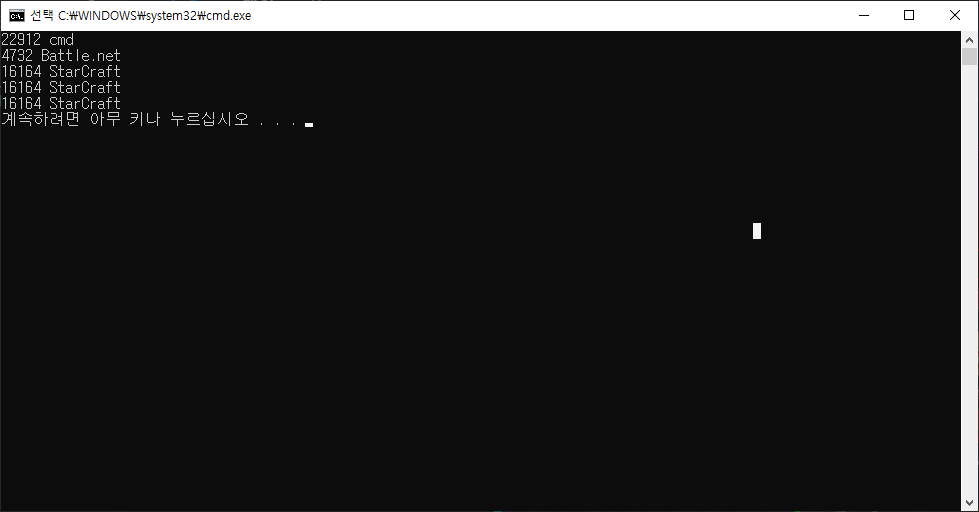
위의 코드로 현재 내 컴퓨터에서 실행 중인 모든 프로세스 정보를 볼 수 있습니다.

실행 결과 화면


그리고 현재 포커싱 되어있는 프로세스에 접근하기 위해선 윈도우 API가 필요합니다.


C:\Windows\System32\user32.dll (dynamic link library) 요기에 있는 함수


IntPtr GetForegroundWindow() : 현재 맨 앞의 윈도우 핸들(hWnd) 가져오기 (최상위 프로세스)

int GetWindowThreadProcessId(IntPtr hWnd, out uint lpdwProcessId) : 핸들을 이용하여 프로세스 아이디 가져오기


2개가 필요합니다.

실행 시켜준 후 다른 프로세스로(실행 중인 프로그램) 포커스를 옮겨보았습니다.

using System;
using System.Diagnostics; //Process
using System.Runtime.InteropServices; //DLL Import
using System.Threading; //Thread

namespace ConsoleApp
{
    class Program
    {
        [DllImport("user32.dll")]
        public static extern int GetWindowThreadProcessId(IntPtr hWnd, out uint lpdwProcessId);

        [DllImport("user32.dll")]
        public static extern IntPtr GetForegroundWindow();

        private static void CheckCurrentProcess ()
        {
            for (int i = 0; i < 5; ++i)
            {
                IntPtr hWnd = GetForegroundWindow(); //맨 앞의 프로그램 핸들 반환
                uint processId;

                GetWindowThreadProcessId(hWnd, out processId); //해당 프로세스 id 반환
                Process currentProcess = Process.GetProcessById((int)processId);

                Console.WriteLine(currentProcess.Id + " " + currentProcess.ProcessName);

                Thread.Sleep(3000); //3초
            }
        }

        static void Main(string[] args)
        {
            Thread thread = new Thread(CheckCurrentProcess);
            thread.Start();
            thread.Join();
        }
    }
}

결과 화면

스타크래프트 키는데 6초 걸렸네요 :)

저는 개인용 캡쳐 프로그램을 만들기 위해 해당 기능들을 사용할 생각입니다.

찾아보면 윈도우 API 기능들이 유용한 것들이 많이 있네요!

+ Recent posts